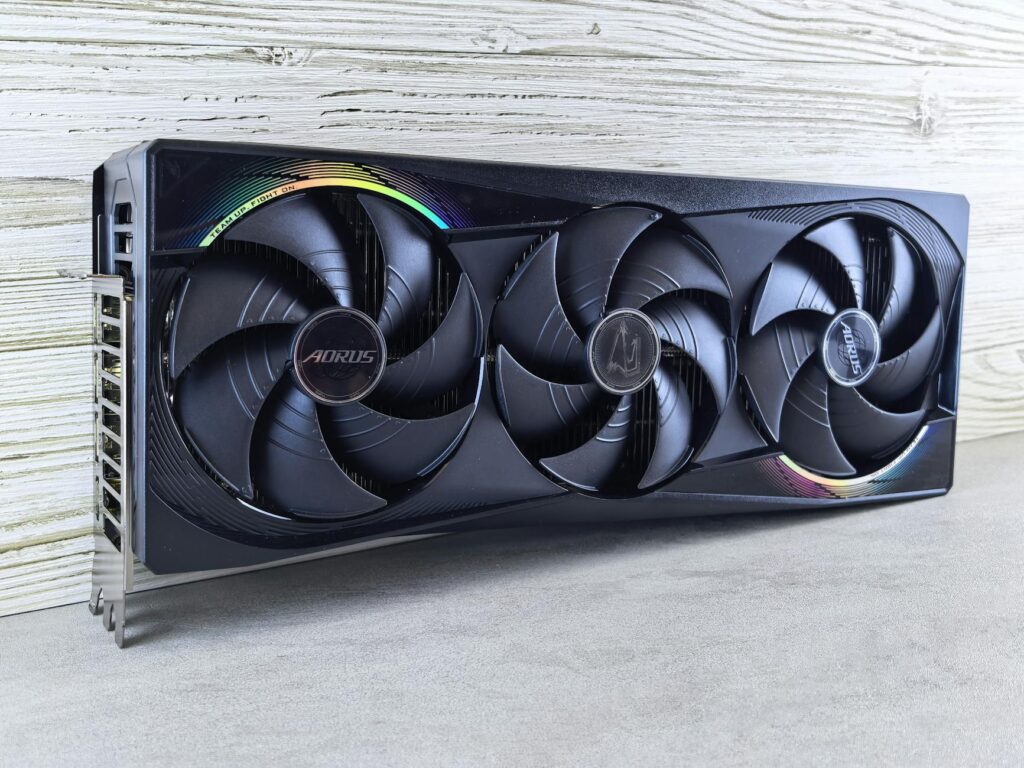
Ever experienced a critical moment in a game where a sudden stutter cost you the win, or felt like your gameplay was moving through molasses? These are common indicators that your high FPS gaming settings need attention. Before investing in flashy peripherals, understand that your frame rate is really important for an enjoyable gaming experience. Achieving consistently high frames per second (FPS) isn’t solely the domain of esports professionals. It’s essential for making games feel responsive, fluid, and more engaging. Fortunately, with strategic adjustments, you can often unlock substantial performance gains from your current gaming rig without needing to purchase new hardware.
This guide focuses on smart optimization rather than expensive upgrades. By applying core principles and the right tweaks, you can dramatically improve your gaming performance. We’ll cut through the complexity to help you achieve that dream of smooth, high-FPS gameplay.
Latest Update (April 2026)
As of April 2026, the pursuit of higher FPS continues to be a central theme in PC gaming optimization. Recent analyses, such as those highlighted by TweakTown regarding hitting over 60 FPS in Cyberpunk 2077 on high settings with the new Panther Lake tablet, demonstrate advancements even in mobile hardware. Valve’s ongoing efforts, including a low-VRAM Linux fix that nearly triples FPS in select games on older AMD cards like the RX 6500 XT, as reported by TweakTown on April 20, 2026, underscore the importance of software and driver optimizations for maximizing performance on accessible hardware. And, as reported by Windows Central in mid-2025, even extensive Windows 11 tweaks can yield noticeable gaming performance increases, demonstrating that system-level optimizations remain a vital component of the high FPS equation. The focus is increasingly on intelligent software and driver adjustments to maximize the potential of existing hardware, making these optimization techniques more accessible than ever.
Table of Contents
- Why Does FPS Even Matter So Much?
- Know Your Rig: The Foundation of High FPS
- In-Game Settings: The Quick Wins for High FPS
- Graphics Card Settings: The Power Boost
- Windows Optimizations for Maximum FPS
- Real-World Case Study: Optimizing a Mid-Range Rig
- Frequently Asked Questions
Why Does FPS Even Matter So Much?
In essence, FPS represents the number of individual frames your computer can render and display each second. A higher frame rate translates directly into a smoother visual experience. Imagine a flipbook: while 24 pages per second provides basic animation, 144 pages per second offers incredibly fluid motion. For gaming, a higher FPS offers several key advantages:
- Responsiveness: Your in-game actions are reflected on the screen with minimal delay — which is critical for fast-paced, reaction-dependent games.
- Smoothness: Eliminates choppy visuals that can be distracting and even induce motion sickness.
- Accuracy: Tracking fast-moving targets becomes easier when the image is stable and free from tearing or stuttering.
Many competitive titles target 144 FPS or higher, especially for players using 144Hz or faster monitors. Even if your display is capped at 60Hz, pushing your FPS well beyond 60 can still result in a noticeably more fluid and immersive experience. It’s about achieving that “buttery-smooth” feel that elevates gameplay.
Know Your Rig: The Foundation of High FPS
Before making any adjustments, it’s key to understand your system’s capabilities. The primary components influencing FPS are your CPU (processor), GPU (graphics card), and RAM (memory). While the GPU is often the most impactful for graphics-intensive tasks, a less powerful CPU can create a bottleneck, limiting the performance of even a high-end graphics card. Understanding these limitations is key to effective optimization.
How to check your system specifications:
- Press Ctrl + Shift + Esc simultaneously to open the Windows Task Manager.
- Navigate to the ‘Performance’ tab.
- Click on ‘CPU’, ‘Memory’, and ‘GPU’ to view detailed information about your hardware.
This information helps identify potential bottlenecks. If you have a solid GPU paired with an older CPU, your optimization efforts should focus on reducing CPU load. Conversely, if your GPU is the primary limitation, you’ll need to make more significant visual compromises. As reported by Tech Times in late 2025, even console platforms like the PlayStation 5 are seeing guides dedicated to achieving 120 FPS through performance mode settings, highlighting the universal demand for higher frame rates across gaming platforms.
In-Game Settings: The Quick Wins for High FPS
The most immediate and significant FPS gains are often found within the game’s own settings menus. While many options exist, some have a disproportionately large impact on performance. Prioritizing these settings for high FPS gaming yields the best results:
- Resolution: Lowering the game’s resolution (e.g., from 4K to 1440p, or 1440p to 1080p) is one of the most effective methods to increase FPS, especially for less powerful GPUs. This reduces the number of pixels your graphics card must render. For competitive gaming, the clarity trade-off is often deemed acceptable for the performance gain.
- Anti-Aliasing (AA): AA techniques smooth out jagged, stair-stepped edges on polygons. Methods like Multi-Sampled Anti-Aliasing (MSAA) can be very demanding. FXAA is less intensive but may introduce a slight blur. Disabling AA entirely often provides a substantial FPS boost. If visual smoothness is critical, consider less demanding AA options.
- Shadows: Realistic shadow rendering is graphically intensive. Reducing shadow quality from Ultra to High or Medium can improve FPS with often minimal perceived visual degradation. Some players find that disabling shadows entirely provides the biggest FPS boost, though it can significantly impact visual fidelity.
- Texture Quality: While high-resolution textures can enhance visual detail, they primarily impact VRAM usage. If you have ample VRAM, reducing this setting might not yield significant FPS gains. However, if you experience stuttering or texture pop-in, lowering texture quality can help stabilize performance.
- Effects Quality: This setting often controls the complexity and density of particle effects, explosions, and spell animations. Lowering this can provide a noticeable FPS boost in busy combat scenarios.
- View Distance/Draw Distance: This determines how far into the game world objects and details are rendered. Reducing it can significantly improve FPS, especially in open-world games, by decreasing the load on both the CPU and GPU.
- Post-Processing Effects: Options like motion blur, depth of field, bloom, and ambient occlusion (AO) add visual flair but can be resource-intensive. Experiment with disabling or lowering these settings for performance gains. Motion blur, in particular, is often disabled by competitive players to improve clarity.
Many modern games also offer dynamic resolution scaling or frame generation technologies. Frame generation, like NVIDIA’s DLSS 3 or AMD’s FSR 3, can dramatically increase perceived FPS by rendering frames at a lower resolution and then using AI to upscale and insert interpolated frames. As the world’s first Panther Lake gaming tablet tests show over 60 FPS in Cyberpunk 2077 on high settings without frame-gen, as reported by TweakTown on April 24, 2026, these technologies are becoming increasingly sophisticated and accessible, even on mobile platforms.
Graphics Card Settings: The Power Boost
Beyond in-game options, your graphics card’s control panel offers further avenues for optimization. Both NVIDIA and AMD provide software suites that allow for global or game-specific adjustments.
NVIDIA Control Panel
Access the NVIDIA Control Panel by right-clicking on your desktop.
- Manage 3D Settings:
- Power Management Mode: Set this to ‘Prefer maximum performance’. This ensures your GPU is always running at its highest clock speeds when needed.
- Texture Filtering – Quality: Set this to ‘High performance’. This prioritizes rendering speed over visual fidelity for textures.
- Vertical Sync (V-Sync): Generally, it’s best to turn V-Sync off in the control panel and manage it in-game or use adaptive sync technologies like G-Sync. V-Sync can introduce input lag and cap your FPS to your monitor’s refresh rate.
- Low Latency Mode: Set to ‘Ultra’ for the lowest possible input lag in supported games.
- Gaming Tab:
- Radeon Anti-Lag: Enable this feature to reduce input lag.
- Radeon Chill: This feature dynamically adjusts frame rates based on your in-game movement to save power and reduce heat, but can sometimes introduce inconsistency. It’s often best disabled for competitive play.
- Radeon Boost: Dynamically lowers resolution during fast motion for increased FPS. Can be useful but may impact visual clarity.
- Texture Filtering Quality: Set to ‘Performance’.
- Wait for Vertical Refresh: Set to ‘Always off’ unless you experience severe screen tearing.
- Game Mode: Ensure Windows Game Mode is enabled (Settings > Gaming > Game Mode). It prioritizes game processes and limits background activity.
- Disable Startup Programs: Prevent unnecessary applications from launching at startup. Open Task Manager (Ctrl+Shift+Esc), go to the ‘Startup’ tab, and disable programs you don’t need running immediately.
- Update Graphics Drivers: Always use the latest drivers from NVIDIA or AMD. These updates often include performance improvements and bug fixes for new games.
- Visual Effects: Adjust Windows visual effects for performance. Go to System Properties (search ‘View advanced system settings’), click ‘Settings’ under Performance, and choose ‘Adjust for best performance’ or customize to disable visual fluff.
- Xbox Game Bar: While useful for some, the Xbox Game Bar can consume resources. If you don’t use its features, disable it in Settings > Gaming > Xbox Game Bar.
- Hardware-Accelerated GPU Scheduling: Found in Settings > System > Display > Graphics settings, enabling this can improve performance and reduce latency by allowing the GPU to manage its own video memory.
- In-Game Tweaks: Lowered settings like shadow quality, effects, and ambient occlusion in Warzone to High/Medium. Disabled motion blur and film grain. Reduced texture quality slightly in demanding titles if VRAM usage was high.
- GPU Control Panel: Set NVIDIA Control Panel power management to ‘Prefer maximum performance’, texture filtering to ‘High performance’, and enabled ‘Low Latency Mode’ to ‘Ultra’.
- Windows Optimizations: Ensured Game Mode was active, disabled unnecessary startup programs, and updated GPU drivers to the latest version available as of April 2026. Enabled Hardware-Accelerated GPU Scheduling.
- Warzone performance increased to a more stable 90-100+ FPS, making gameplay significantly smoother.
- Apex Legends saw a slight boost, consistently staying above 120 FPS.
- Valorant remained at its high frame rate, with reduced potential for dips.
- Florida's 239 Area Code: UK Guide to Southwest Florida in 2026
- Michael Cooper Jr. in 2026: Career, Achievements, Takeaways
- Gadget Performance Testing Method (2026 Update)
AMD Radeon Software
Access AMD Radeon Software by right-clicking on your desktop.
Valve’s recent low-VRAM optimization for Linux, as detailed by TweakTown on April 20, 2026, highlights how driver-level tweaks can significantly impact performance, particularly on hardware with limited resources like the AMD RX 6500 XT. This demonstrates that even older or budget hardware can see substantial gains through targeted software updates and driver optimizations.
Windows Optimizations for Maximum FPS
Your operating system plays a role in gaming performance. Optimizing Windows can free up resources and ensure your system prioritizes your games.
As Windows Central reported in mid-2025, even extensive Windows 11 tweaks can yield noticeable gaming performance increases. This reinforces the idea that a well-tuned operating system is foundational for maximizing your gaming hardware’s potential.
Real-World Case Study: Optimizing a Mid-Range Rig
Consider a hypothetical mid-range gaming PC from 2023, featuring an Intel Core i5-12400F CPU, an NVIDIA GeForce RTX 3060 GPU, and 16GB of DDR4 RAM, paired with a 144Hz 1080p monitor. The goal is to consistently achieve over 100 FPS in popular titles like Valorant, Apex Legends, and Call of Duty: Warzone.
Initial State
Out-of-the-box settings in Warzone might yield around 70-80 FPS on medium-high settings at 1080p. Apex Legends might perform better, hitting 90-110 FPS, while Valorant would likely exceed 144 FPS easily.
Optimization Steps Taken
Results
After these optimizations:
This case study illustrates how a combination of in-game adjustments, GPU driver settings, and Windows optimizations can significantly enhance FPS on mid-range hardware without requiring new components.
Frequently Asked Questions
What is the difference between FPS and Hz?
FPS (Frames Per Second) is the number of frames your computer renders and displays each second. Hz (Hertz) is the refresh rate of your monitor, indicating how many times per second the screen can update its image. For example, a 144Hz monitor can display up to 144 FPS. If your PC outputs 200 FPS but your monitor is only 60Hz, you will only see 60 unique frames per second, though the increased FPS can still lead to smoother motion and reduced input lag.
Is it better to have higher FPS or lower input lag?
For most gamers, especially in competitive titles, higher FPS and lower input lag are both highly desirable and often go hand-in-hand. Higher FPS means more frequent updates from the game, and technologies like NVIDIA’s Low Latency Mode or AMD’s Radeon Anti-Lag aim to reduce the delay between your input and the action appearing on screen. Prioritizing both through optimization yields the best experience.
Can I achieve 240 FPS on older hardware?
Achieving 240 FPS is highly dependent on the game’s demands and your hardware specifications. Older or less demanding titles (like esports games such as CS:GO or Valorant) might reach 240 FPS on mid-range to high-end systems from 2023-2024, especially with aggressive graphical setting reductions. However, for modern AAA titles released in 2026 or 2026, reaching 240 FPS typically requires top-tier, current-generation hardware and significant graphical compromises.
Should I disable V-Sync?
Generally, yes, especially if you have a high refresh rate monitor and adaptive sync technology (G-Sync/FreeSync). V-Sync synchronizes your game’s FPS with your monitor’s refresh rate to prevent screen tearing. However, it can introduce input lag and cap your FPS. If you don’t have adaptive sync and experience significant screen tearing, enabling V-Sync or using in-game options like fast sync might be necessary, but for the smoothest and most responsive experience, adaptive sync or disabling V-Sync altogether is preferred.
How much does upgrading my monitor help FPS?
Upgrading your monitor doesn’t directly increase the FPS your PC outputs. However, a higher refresh rate monitor (e.g., 144Hz or 240Hz compared to 60Hz) allows you to perceive the higher FPS your PC is capable of rendering, leading to a much smoother and more responsive visual experience. It’s a crucial component for realizing the benefits of high FPS gaming.
Final Thoughts
Optimizing your gaming settings for high FPS is an achievable goal for most PC gamers in 2026. By understanding your hardware, strategically adjusting in-game and graphics card settings, and fine-tuning your Windows environment, you can significantly enhance your gameplay experience. Remember that consistent performance often comes from a complete approach, combining software tweaks with hardware awareness. Don’t underestimate the power of small adjustments; they can collectively lead to dramatic improvements in fluidity and responsiveness, making every gaming session more enjoyable.
Source: Britannica
Related Articles
Editorial Note: This article was researched and written by the Serlig editorial team. We fact-check our content and update it regularly. For questions or corrections, contact us.