I accidentally lost important contacts from my iPhone. Is there any free iPhone data recovery method that can help me to restore those deleted contacts?
Losing contacts on your iPhone can be frustrating – especially when they include important personal or professional connections. Whether your contacts are lost due to accidental deletion, iPhone formatting, iOS update issues, or any other reason, the good news is that there are several iPhone data recovery software and DIY methods available to restore them.
In this guide, we’ll walk you through various step-by-step methods—both with and without backups—that you can use to recover deleted contacts on an iPhone.
Understanding Common Reasons for Contact Loss on iPhone
Identifying the exact cause of contact loss on your iPhone helps you determine an adequate data recovery approach. Some main reasons why contacts disappear from your iPhone include:
- Accidental Deletion: One of the main reasons for contact loss is unintentional deletion while editing or managing your contact list.
- iOS Update Issues: System updates can sometimes cause data syncing problems or temporary loss of contacts.
- iCloud Sync Errors: Disabled or faulty iCloud syncing can make contacts disappear from your iPhone and other synced devices.
- Apple ID Changes: Logging out or switching Apple IDs on your iPhone may remove synced contacts.
- Factory Reset: Performing a factory reset on your iPhone without backup leads to complete data loss, including contacts.
- Software Glitches: Bugs or third-party app crashes on your iPhone can sometimes affect contact visibility or storage.
Immediate Steps for Smooth Contact Recovery on iPhone
When you find contacts are deleted from your iPhone, it’s important to consider certain important pre-requisites. This includes:
- Stop using your iPhone immediately: Avoid saving or deleting new data on your iPhone to prevent overwritten contacts and improve recovery chances.
- Check internet connection: Ensure your iPhone is connected to a stable Wi-Fi or mobile data for proper iCloud or account syncing.
- Restart your iPhone: A simple restart of your iPhone can resolve temporary glitches or bugs that may prevent your contacts from appearing properly.
- Look in Recently Deleted: Latest iPhone models come with built-in Recently Deleted section in the Contacts app, which you can use to restore temporarily deleted contacts easily.
- Check all accounts: Navigate to Settings > Contacts > Accounts and confirm all accounts are synced properly.
How to Business Cards: Essential Design & Printing in 2026
How do I Recover Deleted Contacts on iPhone? [With Backups]
Now that you are familiar with the reasons for your contact loss and certain pre-requisites for smooth recovery, it’s time to restore your deleted contacts. You can go with the below methods one by one to get your lost contacts back:
Method 01: Check Recently Deleted Contacts (iOS Feature)
Many latest iPhone models come with an in-built “Recently Deleted” feature in the Contacts app that you can use to restore your lost contacts. This temporary storage space stores your deleted contacts for a limited time before they are permanently erased from your iPhone. To restore your lost contacts from this “Recently Deleted” folder, you’ve to:
- Launch the Contacts app on your iPhone.
- Go to the Recently Deleted
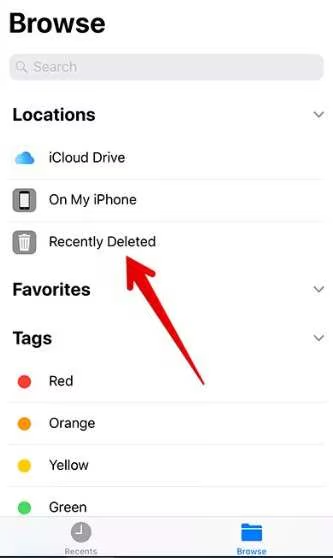
- Browse through the list and select the contacts you want to restore.
- Once selected, tap on the Recover option to bring them back to your main contact list.
Note: This method works only for a limited period after deletion (typically up to 30 days). After that, contacts are permanently removed and cannot be recovered using this feature.
Method 02: Recover Deleted Contacts Using iCloud Backups
If you’ve synced your iPhone contacts with iCloud backups, recovering them would be a very easy and quick process. Apple automatically syncs and stores your contacts in iCloud when the feature is enabled, allowing you to recover them without needing any third-party iPhone data recovery software tools.
Follow the below steps to restore deleted contacts on iPhone using iCloud backups:
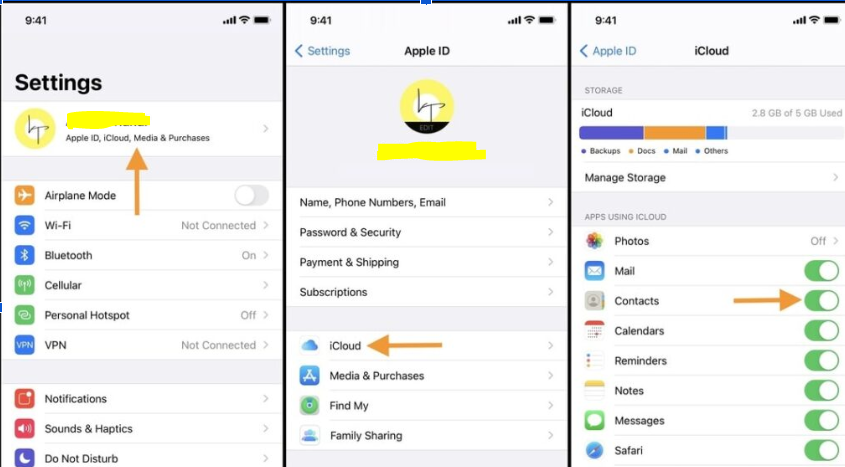
- Firstly, launch the Settings app on your iPhone.
- Click on your Apple ID, go to iCloud. Ensure the Contacts toggle is
- Now, open a web browser on your device and go to http://icloud.com/.
- Log in using your Apple ID and go to Account Settings.
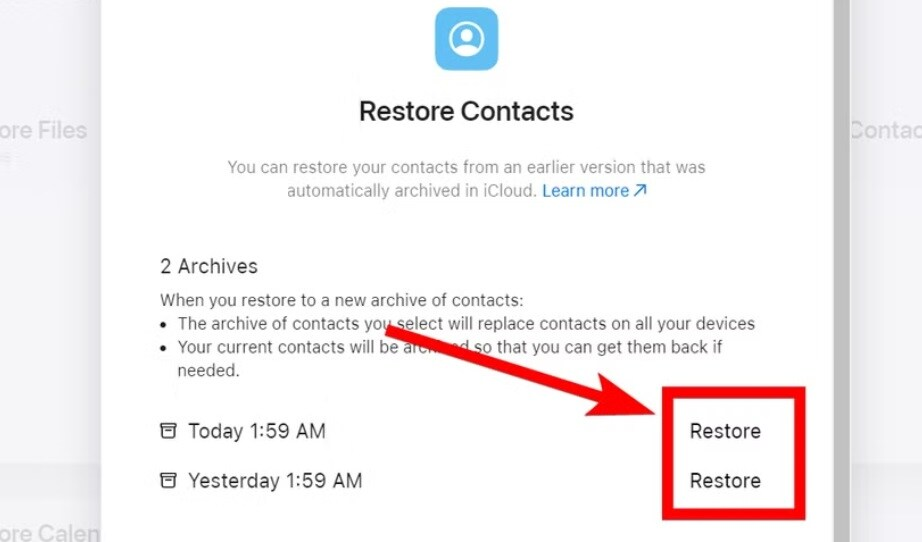
- Scroll down to Advanced and then tap on the “Restore Contacts” option.
- Select the backup version created before deletion.
- Click Restore and go through the on-screen prompts to conclude the process.
Method 03: Recover iPhone Contacts Using iTunes Backups
Another backup alternative that you can try to restore deleted contacts on iPhone is via iTunes (or Finder on Mac). This method allows you to recover not only contacts but also other important data stored at the time of backup. It is especially useful when iCloud backup is unavailable or disabled. Here’s how you can restore deleted contacts using iTunes backup:
- Connect your iPhone to the computer you used for backup.
- Open iTunes (or Finder if you’re using macOS Catalina or later).
- Select your iPhone and click on the “Restore Backup” option from the Summary section.
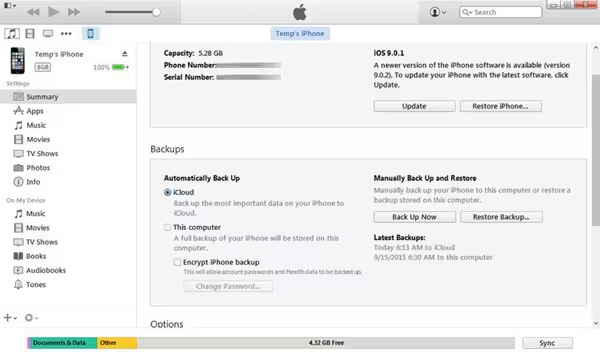
- Browse through the list of available backups and choose the one that was created before your contacts were deleted.
- Click Restore and wait for the process to complete.
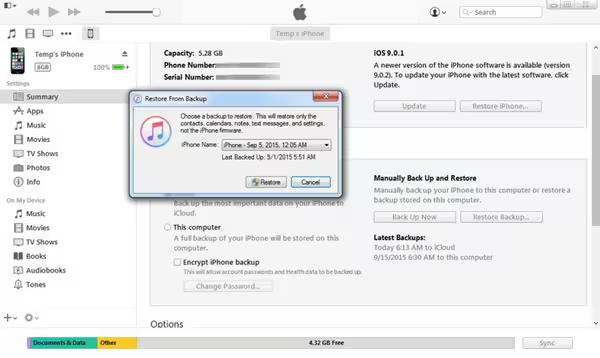
Once done, your iPhone will restart, and the selected backup will be restored, including your deleted contacts.
Restore Deleted Contacts on iPhone without Backups
If you don’t have any backup of your lost contacts, try a third-party iPhone data recovery tool to get your deleted contacts back. Tools like Stellar Data Recovery for iPhone scan your iPhone at a deeper level to locate traces of deleted data. This all-in-one recovery software is designed with a user-friendly interface, making it suitable even for beginners or non-technical users. You can use this software to restore contacts lost due to accidental deletion, formatting, system error, and many other reasons.
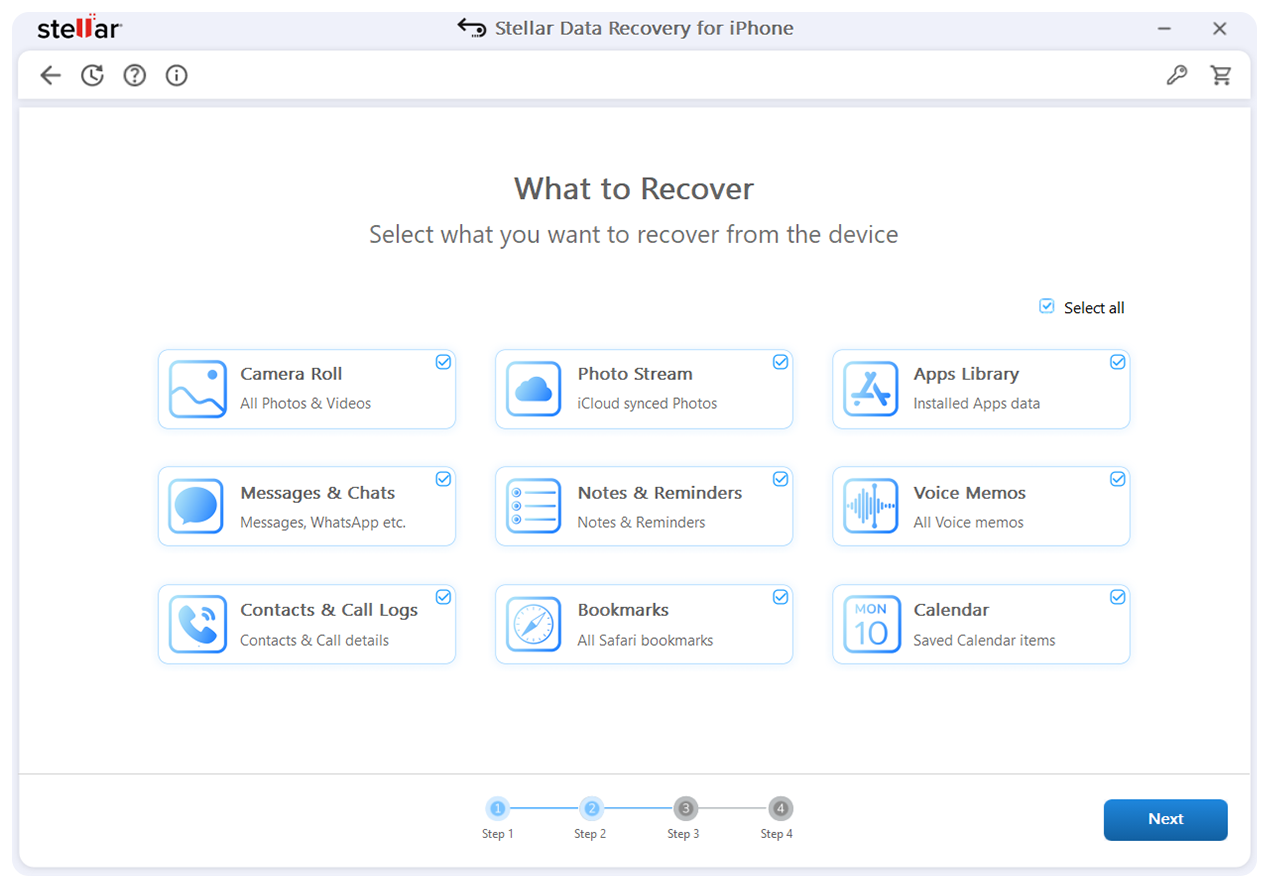
The Stellar Data Recovery for iPhone tool supports recovery from multiple sources, including iPhones, iTunes backups, and iCloud accounts, offering flexibility depending on your situation. Along with contacts, you can use this software to restore deleted photos, videos, documents, and other types of files in various file formats. It also allows you to preview the recoverable files before saving them on your device.
Wrapping Up
Recovering lost contacts on your iPhone may seem like a challenging task, but don’t worry – your contacts aren’t permanently lost. With multiple recovery methods available – from iCloud and iTunes backups to advanced iPhone data recovery software tools – you have a high chance of restoring your lost contacts. For situations where no backup is available, Stellar Data Recovery for iPhone stands out as a reliable and effective solution, offering deep scanning and selective recovery.
The key takeaway is to act quickly. The sooner you attempt recovery, the higher your chances of success. Also, make it a habit to back up your data regularly to avoid such situations in the future.
Frequently Asked Questions (FAQs)
How can I restore deleted contacts on my iPhone?
If you have backup of your deleted contacts, you can easily restore them using iCloud, iTunes, or Gmail sync. In case no backup exists, use iPhone data recovery software tools like Stellar Data Recovery for iPhone.
How long do deleted contacts stay on an iPhone?
Deleted contacts are usually stored in the “Recently Deleted” section for up to 30 days, after which they get permanently erased from your iPhone.
Can I restore only selected contacts instead of all data?
Yes, tools like Stellar Data Recovery for iPhone allow selective recovery of specific contacts without restoring the entire backup.
Is it safe to use third-party iPhone data recovery software?
Yes, reputable third-party tools like Stellar Data Recovery for iPhone are safe when downloaded from official sources.